Selasa, 19 Agustus 2008
Lanjutan TutoriaL Microsoft Office 2007
klik Link Dsmpng : Great tutotriaL http://www.fgcu.edu/support/office2007/Word/index.asp

Working With Documents
Create a New Document
There are several ways to create new documents, open existing documents, and save documents in Word:
Click the Microsoft Office Button * and Click New or
* Press CTRL+N (Depress the CTRL key while pressing the “N”) on the keyboard
You will notice that when you click on the Microsoft Office Button and Click New, you have many choices about the types of documents you can create. If you wish to start from a blank document, click Blank. If you wish to start from a template you can browse through your choices on the left, see the choices on center screen, and preview the selection on the right screen.

Opening an Existing Document
* Click the Microsoft Office Button # and Click Open, or
# Press CTRL+O (Depress the CTRL key while pressing the “O”) on the keyboard, or
# If you have recently used the document you can click the Microsoft Office Button and click the name of the document in the Recent Documents section of the window Insert picture of recent docs
Saving a Document
Click the Microsoft Office Button# and Click Save or Save As (remember, if you’re sending the document to someone who does not have Office 2007, you will need to click the Office Button, click Save As, and Click Word 97-2003 Document), or
# Press CTRL+S (Depress the CTRL key while pressing the “S”) on the keyboard, or
# Click the File icon on the Quick Access Toolbar

Renaming Documents
To rename a Word document while using the program:
* Click the Office Button# and find the file you want to rename.
# Right-click the document name with the mouse and select Rename from the shortcut menu.
# Type the new name for the file and press the ENTER key.

Working on Multiple Documents
Several documents can be opened simultaneously if you are typing or editing multiple documents at once. All open documents will be listed in the View Tab of the Ribbon when you click on Switch Windows. The current document has a checkmark beside the file name. Select another open document to view it.

Document Views
There are many ways to view a document in Word.
* Print Layout: This is a view of the document as it would appear when printed. It includes all tables, text, graphics, and images.
* Full Screen Reading: This is a full view length view of a document. Good for viewing two pages at a time.
* Web Layout: This is a view of the document as it would appear in a web browser.
* Outline: This is an outline form of the document in the form of bullets.
* Draft: This view does not display pictures or layouts, just text.
To view a document in different forms, click the document views shortcuts at the bottom of the screen or:
or:
* Click the View Tab on the Ribbon
* Click on the appropriate document view.

Close a Document
To close a document:
* Click the Office Button
* Click Close
There are several ways to create new documents, open existing documents, and save documents in Word:
Click the Microsoft Office Button
 * and Click New or
* Press CTRL+N (Depress the CTRL key while pressing the “N”) on the keyboard
You will notice that when you click on the Microsoft Office Button and Click New, you have many choices about the types of documents you can create. If you wish to start from a blank document, click Blank. If you wish to start from a template you can browse through your choices on the left, see the choices on center screen, and preview the selection on the right screen.

Opening an Existing Document
* Click the Microsoft Office Button # and Click Open, or
# Press CTRL+O (Depress the CTRL key while pressing the “O”) on the keyboard, or
# If you have recently used the document you can click the Microsoft Office Button and click the name of the document in the Recent Documents section of the window Insert picture of recent docs
Saving a Document
Click the Microsoft Office Button# and Click Save or Save As (remember, if you’re sending the document to someone who does not have Office 2007, you will need to click the Office Button, click Save As, and Click Word 97-2003 Document), or
# Press CTRL+S (Depress the CTRL key while pressing the “S”) on the keyboard, or
# Click the File icon on the Quick Access Toolbar

Renaming Documents
To rename a Word document while using the program:
* Click the Office Button# and find the file you want to rename.
# Right-click the document name with the mouse and select Rename from the shortcut menu.
# Type the new name for the file and press the ENTER key.

Working on Multiple Documents
Several documents can be opened simultaneously if you are typing or editing multiple documents at once. All open documents will be listed in the View Tab of the Ribbon when you click on Switch Windows. The current document has a checkmark beside the file name. Select another open document to view it.

Document Views
There are many ways to view a document in Word.
* Print Layout: This is a view of the document as it would appear when printed. It includes all tables, text, graphics, and images.
* Full Screen Reading: This is a full view length view of a document. Good for viewing two pages at a time.
* Web Layout: This is a view of the document as it would appear in a web browser.
* Outline: This is an outline form of the document in the form of bullets.
* Draft: This view does not display pictures or layouts, just text.
To view a document in different forms, click the document views shortcuts at the bottom of the screen
 or:
or:* Click the View Tab on the Ribbon
* Click on the appropriate document view.

Close a Document
To close a document:
* Click the Office Button
* Click Close
Minggu, 09 Desember 2007
Panduan singkat untuk menginstall ulang Windows XP
Kenapa Windows XP? Karena saya rasa sebagian besar orang pasti menggunakan Windows XP sebagai OSnya. Bagaimana dengan Linux? Ada asumsi di masyarakat kalau pengguna Linux hanya bagi kalangan yang sudah advance, jadi saya rasa jarang ada pemula yang menggunakan Linux dan kalangan advance itu sendiri tentu sudah berpengalaman dan sebagian besar sudah tahu cara menginstall Linux ke dalam sistemnya.
Berikut ini adalah panduan dalam menginstall Windows XP yang saya buat sangat simpel, karena banyak step2 yang saya skip dengan asumsi kalau user sudah mengetahuinya. Maaf kalau ternyata step2 yang saya skip masih ada yang belum mengerti dan silahkan ditanyakan ke sini.
Cara simpel untuk install ulang Windows XP:
1. Masukin CD/DVD Windows XP, kalau muncul menu, diclose aja.
2. Restart komputer
3. Pas logo motherboard muncul, masuk ke config (biasanya del, atau F2, atau F4, dll tergantung jenis BIOSnya), set first boot ke CD/DVD-ROM. Note: Pada motherboard2 tertentu biasanya ada boot menu yang memungkinkan kita untuk melakukan boot dari hardware tertentu tanpa perlu masuk ke dalam config BIOS yang membingungkan.
4. Habis itu biasanya ada tulisan, "Press any key to boot from CD." Tekan tombol sembarang.
5. Tunggu komputer meload content dari CD. Ikuti instruksi2 yang muncul, misalnya menyetujui EULA, dll.
6. Habis detecting previous OS version, biasanya ada pilihan repair atau don't repair. Pilih yang don't repair.
7. Habis bakalan muncul harddisk2 yang terhubung ke PC.
8. Delete partisi2 yang ada.
9. Buat partisi2 yang baru. Jumlah dan ukuran partisi tergantung keperluan.
10. Tekan enter pada drive tujuan instalasi Windows XP dan anda akan disuguhkan sebuat menu formating. Sebaiknya menggunakan NTFS, karena masalah kompatibilitas dan keamanan (sistem partisi NTFS memiliki support terhadap kompresi data yang lebih baik dan encrypt data), dan terlebih lagi (menurut saya) lebih cepat.
11. Tunggu sampai format dan proses pengcopyan data ke dalam harddisk selesai.
12. Restart komputer.
13. Setting komputer untuk boot dari harddisk kembali.
14. Sampai di sini anda sudah 80 persen dalam proses instalasi Windows XP.
15. Ikuti instruksi2 (setting jam, setting bahasa, dll) sampai akhirnya anda diharuskan melakukan restart dan sampai saat ini proses penginstalasian sudah selesai.
16. Ini hanya tahap permulaan, karena pada akhirnya anda harus direpotkan lagi dengan menginstall driver dan software2 yang bejibun banyaknya
Pastikan anda sudah:
1. Backup data2 penting, My Documents, music, pic, video, dll.
2. Backup data2 jadwal, calendar, meeting, appointment, dll.
3. Backup bookmark website2 favorit.
4. Backup setting2 software dll.
5. Menyiapkan CD dan file instalasi driver dan software.
6. Dan yang paling penting anda sudah menyiapkan CD/DVD Windows XP
Berikut ini adalah panduan dalam menginstall Windows XP yang saya buat sangat simpel, karena banyak step2 yang saya skip dengan asumsi kalau user sudah mengetahuinya. Maaf kalau ternyata step2 yang saya skip masih ada yang belum mengerti dan silahkan ditanyakan ke sini.
Cara simpel untuk install ulang Windows XP:
1. Masukin CD/DVD Windows XP, kalau muncul menu, diclose aja.
2. Restart komputer
3. Pas logo motherboard muncul, masuk ke config (biasanya del, atau F2, atau F4, dll tergantung jenis BIOSnya), set first boot ke CD/DVD-ROM. Note: Pada motherboard2 tertentu biasanya ada boot menu yang memungkinkan kita untuk melakukan boot dari hardware tertentu tanpa perlu masuk ke dalam config BIOS yang membingungkan.
4. Habis itu biasanya ada tulisan, "Press any key to boot from CD." Tekan tombol sembarang.
5. Tunggu komputer meload content dari CD. Ikuti instruksi2 yang muncul, misalnya menyetujui EULA, dll.
6. Habis detecting previous OS version, biasanya ada pilihan repair atau don't repair. Pilih yang don't repair.
7. Habis bakalan muncul harddisk2 yang terhubung ke PC.
8. Delete partisi2 yang ada.
9. Buat partisi2 yang baru. Jumlah dan ukuran partisi tergantung keperluan.
10. Tekan enter pada drive tujuan instalasi Windows XP dan anda akan disuguhkan sebuat menu formating. Sebaiknya menggunakan NTFS, karena masalah kompatibilitas dan keamanan (sistem partisi NTFS memiliki support terhadap kompresi data yang lebih baik dan encrypt data), dan terlebih lagi (menurut saya) lebih cepat.
11. Tunggu sampai format dan proses pengcopyan data ke dalam harddisk selesai.
12. Restart komputer.
13. Setting komputer untuk boot dari harddisk kembali.
14. Sampai di sini anda sudah 80 persen dalam proses instalasi Windows XP.
15. Ikuti instruksi2 (setting jam, setting bahasa, dll) sampai akhirnya anda diharuskan melakukan restart dan sampai saat ini proses penginstalasian sudah selesai.
16. Ini hanya tahap permulaan, karena pada akhirnya anda harus direpotkan lagi dengan menginstall driver dan software2 yang bejibun banyaknya
Pastikan anda sudah:
1. Backup data2 penting, My Documents, music, pic, video, dll.
2. Backup data2 jadwal, calendar, meeting, appointment, dll.
3. Backup bookmark website2 favorit.
4. Backup setting2 software dll.
5. Menyiapkan CD dan file instalasi driver dan software.
6. Dan yang paling penting anda sudah menyiapkan CD/DVD Windows XP
Disable Autorun on CD/DVD-ROM, USB Flash Disk, or HDD Portable
Many people feel so paranoid on viruses lately. It's because the virus makers found a way to make the virus runs without needed to wait until the victim runs the virus file. The most popular way is to make the virus runs itself automatically when a CD/DVD, USB flash disk (UFD), or HDD portable is attached to the computer. The virus makers using Windows XP's autorun feature to run the virus.
The best way to prevent this kind of spreading method is to disable autorun in your Windows XP. The easiest way to disable autorun in Windows XP is do it through Group Policy Editor. Follow the following steps to disable your autorun.
1. Click
System: Windows XPand then click on

2. Type gpedit.msc on the appearing Run dialog window.
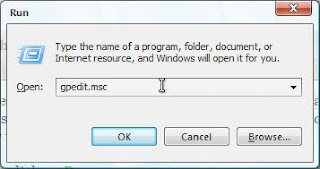
3. When Group Policy Editor is appeared, focus on the left side of the window and browse to Computer Configuration\Administrative Templates\System.
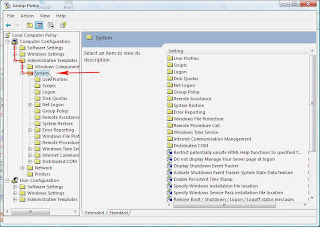
4. On the right side of the window, find an entry which is called Turn Off Autoplay.
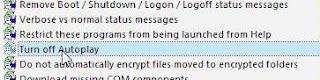
5. Double click on the entry, change the setting to Enabled, and choose which drive you want this setting to be applied. Click on OK.
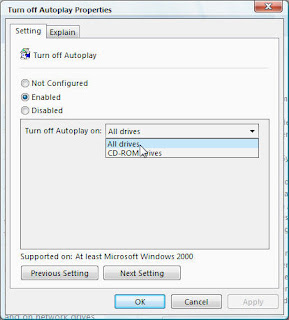
6. Restart or do logoff/logon on your system.
The best way to prevent this kind of spreading method is to disable autorun in your Windows XP. The easiest way to disable autorun in Windows XP is do it through Group Policy Editor. Follow the following steps to disable your autorun.
1. Click

System: Windows XPand then click on

2. Type gpedit.msc on the appearing Run dialog window.

3. When Group Policy Editor is appeared, focus on the left side of the window and browse to Computer Configuration\Administrative Templates\System.

4. On the right side of the window, find an entry which is called Turn Off Autoplay.

5. Double click on the entry, change the setting to Enabled, and choose which drive you want this setting to be applied. Click on OK.

6. Restart or do logoff/logon on your system.
Kamis, 06 Desember 2007
All XP commands part II
Run Commands:
compmgmt.msc - Computer management
devmgmt.msc - Device manager
diskmgmt.msc - Disk management
dfrg.msc - Disk defrag
eventvwr.msc - Event viewer
fsmgmt.msc - Shared folders
gpedit.msc - Group policies
lusrmgr.msc - Local users and groups
perfmon.msc - Performance monitor
rsop.msc - Resultant set of policies
secpol.msc - Local security settings
services.msc - Various Services
msconfig - System Configuration Utility
regedit - Registry Editor
msinfo32 _ System Information
sysedit _ System Edit
win.ini _ windows loading information(also system.ini)
winver _ Shows current version of windows
mailto: _ Opens default email client`
command _ Opens command prompt
Run Commands to access the control panel:
appwiz.cpl -Add/Remove Programs control
timedate.cpl -Date/Time Properties control
desk.cpl -Display Properties control
findfast.cpl -FindFast control
inetcpl.cpl -Internet Properties control
main.cpl keyboard -Keyboard Properties control
main.cpl -Mouse Properties control
mmsys.cpl -Multimedia Properties control
netcpl.cpl -Network Properties control
password.cpl -Password Properties control
mmsys.cpl sounds -Sound Properties control
sysdm.cpl -System Properties control
Command Prompt:
ANSI.SYS Defines functions that change display graphics, control cursor movement, and reassign keys.
APPEND Causes MS-DOS to look in other directories when editing a file or running a command.
ARP Displays, adds, and removes arp information from network devices.
ASSIGN Assign a drive letter to an alternate letter.
ASSOC View the file associations.
AT Schedule a time to execute commands or programs.
ATMADM Lists connections and addresses seen by Windows ATM call manager.
ATTRIB Display and change file attributes.
BATCH Recovery console command that executes a series of commands in a file.
BOOTCFG Recovery console command that allows a user to view, modify, and rebuild the boot.ini
BREAK Enable / disable CTRL + C feature.
CACLS View and modify file ACL's.
CALL Calls a batch file from another batch file.
CD Changes directories.
CHCP Supplement the International keyboard and character set information.
CHDIR Changes directories.
CHKDSK Check the hard disk drive running FAT for errors.
CHKNTFS Check the hard disk drive running NTFS for errors.
CHOICE Specify a listing of multiple options within a batch file.
CLS Clears the screen.
CMD Opens the command interpreter.
COLOR Easily change the foreground and background color of the MS-DOS window.
COMP Compares files.
COMPACT Compresses and uncompress files.
CONTROL Open control panel icons from the MS-DOS prompt.
CONVERT Convert FAT to NTFS.
COPY Copy one or more files to an alternate location.
CTTY Change the computers input/output devices.
DATE View or change the systems date.
DEBUG Debug utility to create assembly programs to modify hardware settings.
DEFRAG Re-arrange the hard disk drive to help with loading programs.
DEL Deletes one or more files.
DELETE Recovery console command that deletes a file.
DELTREE Deletes one or more files and/or directories.
DIR List the contents of one or more directory.
DISABLE Recovery console command that disables Windows system services or drivers.
DISKCOMP Compare a disk with another disk.
DISKCOPY Copy the contents of one disk and place them on another disk.
DOSKEY Command to view and execute commands that have been run in the past.
DOSSHELL A GUI to help with early MS-DOS users.
DRIVPARM Enables overwrite of original device drivers.
ECHO Displays messages and enables and disables echo.
EDIT View and edit files.
EDLIN View and edit files.
EMM386 Load extended Memory Manager.
ENABLE Recovery console command to enable a disable service or driver.
ENDLOCAL Stops the localization of the environment changes enabled by the setlocal command.
ERASE Erase files from computer.
EXIT Exit from the command interpreter.
EXPAND Expand a M*cros*ft Windows file back to it's original format.
EXTRACT Extract files from the M*cros*ft Windows cabinets.
FASTHELP Displays a listing of MS-DOS commands and information about them.
FC Compare files.
FDISK Utility used to create partitions on the hard disk drive.
FIND Search for text within a file.
FINDSTR Searches for a string of text within a file.
FIXBOOT Writes a new boot sector.
FIXMBR Writes a new boot record to a disk drive.
FOR Boolean used in batch files.
FORMAT Command to erase and prepare a disk drive.
FTP Command to connect and operate on a FTP server.
FTYPE Displays or modifies file types used in file extension associations.
GOTO Moves a batch file to a specific label or location.
GRAFTABL Show extended characters in graphics mode.
HELP Display a listing of commands and brief explanation.
IF Allows for batch files to perform conditional processing.
IFSHLP.SYS 32-bit file manager.
IPCONFIG Network command to view network adapter settings and assigned values.
KEYB Change layout of keyboard.
LABEL Change the label of a disk drive.
LH Load a device driver in to high memory.
LISTSVC Recovery console command that displays the services and drivers.
LOADFIX Load a program above the first 64k.
LOADHIGH Load a device driver in to high memory.
LOCK Lock the hard disk drive.
LOGON Recovery console command to list installations and enable administrator login.
MAP Displays the device name of a drive.
MD Command to create a new directory.
MEM Display memory on system.
MKDIR Command to create a new directory.
MODE Modify the port or display settings.
MORE Display one page at a time.
MOVE Move one or more files from one directory to another directory.
MSAV Early M*cros*ft Virus scanner.
MSD Diagnostics utility.
MSCDEX Utility used to load and provide access to the CD-ROM.
NBTSTAT Displays protocol statistics and current TCP/IP connections using NBT
NET Update, fix, or view the network or network settings
NETSH Configure dynamic and static network information from MS-DOS.
NETSTAT Display the TCP/IP network protocol statistics and information.
NLSFUNC Load country specific information.
NSLOOKUP Look up an IP address of a domain or host on a network.
PATH View and modify the computers path location.
PATHPING View and locate locations of network latency.
PAUSE Command used in batch files to stop the processing of a command.
PING Test / send information to another network computer or network device.
POPD Changes to the directory or network path stored by the pushd command.
POWER Conserve power with computer portables.
PRINT Prints data to a printer port.
PROMPT View and change the MS-DOS prompt.
PUSHD Stores a directory or network path in memory so it can be returned to at any time.
QBASIC Open the QBasic.
RD Removes an empty directory.
REN Renames a file or directory.
RENAME Renames a file or directory.
RMDIR Removes an empty directory.
ROUTE View and configure windows network route tables.
RUNAS Enables a user to execute a program on another computer.
SCANDISK Run the scandisk utility.
SCANREG Scan registry and recover registry from errors.
SET Change one variable or string to another.
SETLOCAL Enables local environments to be changed without affecting anything else.
SETVER Change MS-DOS version to trick older MS-DOS programs.
SHARE Installs support for file sharing and locking capabilities.
SHIFT Changes the position of replaceable parameters in a batch program.
SHUTDOWN Shutdown the computer from the MS-DOS prompt.
SMARTDRV Create a disk cache in conventional memory or extended memory.
SORT Sorts the input and displays the output to the screen.
START Start a separate window in Windows from the MS-DOS prompt.
SUBST Substitute a folder on your computer for another drive letter.
SWITCHES Remove add functions from MS-DOS.
SYS Transfer system files to disk drive.
TELNET Telnet to another computer / device from the prompt.
TIME View or modify the system time.
TITLE Change the title of their MS-DOS window.
TRACERT Visually view a network packets route across a network.
TREE View a visual tree of the hard disk drive.
TYPE Display the contents of a file.
UNDELETE Undelete a file that has been deleted.
UNFORMAT Unformat a hard disk drive.
UNLOCK Unlock a disk drive.
VER Display the version information.
VERIFY Enables or disables the feature to determine if files have been written properly.
VOL Displays the volume information about the designated drive.
XCOPY Copy multiple files, directories, and/or drives from one location to another.
TRUENAME When placed before a file, will display the whole directory in which it exists
TASKKILL It allows you to kill those unneeded or locked up applications
compmgmt.msc - Computer management
devmgmt.msc - Device manager
diskmgmt.msc - Disk management
dfrg.msc - Disk defrag
eventvwr.msc - Event viewer
fsmgmt.msc - Shared folders
gpedit.msc - Group policies
lusrmgr.msc - Local users and groups
perfmon.msc - Performance monitor
rsop.msc - Resultant set of policies
secpol.msc - Local security settings
services.msc - Various Services
msconfig - System Configuration Utility
regedit - Registry Editor
msinfo32 _ System Information
sysedit _ System Edit
win.ini _ windows loading information(also system.ini)
winver _ Shows current version of windows
mailto: _ Opens default email client`
command _ Opens command prompt
Run Commands to access the control panel:
appwiz.cpl -Add/Remove Programs control
timedate.cpl -Date/Time Properties control
desk.cpl -Display Properties control
findfast.cpl -FindFast control
inetcpl.cpl -Internet Properties control
main.cpl keyboard -Keyboard Properties control
main.cpl -Mouse Properties control
mmsys.cpl -Multimedia Properties control
netcpl.cpl -Network Properties control
password.cpl -Password Properties control
mmsys.cpl sounds -Sound Properties control
sysdm.cpl -System Properties control
Command Prompt:
ANSI.SYS Defines functions that change display graphics, control cursor movement, and reassign keys.
APPEND Causes MS-DOS to look in other directories when editing a file or running a command.
ARP Displays, adds, and removes arp information from network devices.
ASSIGN Assign a drive letter to an alternate letter.
ASSOC View the file associations.
AT Schedule a time to execute commands or programs.
ATMADM Lists connections and addresses seen by Windows ATM call manager.
ATTRIB Display and change file attributes.
BATCH Recovery console command that executes a series of commands in a file.
BOOTCFG Recovery console command that allows a user to view, modify, and rebuild the boot.ini
BREAK Enable / disable CTRL + C feature.
CACLS View and modify file ACL's.
CALL Calls a batch file from another batch file.
CD Changes directories.
CHCP Supplement the International keyboard and character set information.
CHDIR Changes directories.
CHKDSK Check the hard disk drive running FAT for errors.
CHKNTFS Check the hard disk drive running NTFS for errors.
CHOICE Specify a listing of multiple options within a batch file.
CLS Clears the screen.
CMD Opens the command interpreter.
COLOR Easily change the foreground and background color of the MS-DOS window.
COMP Compares files.
COMPACT Compresses and uncompress files.
CONTROL Open control panel icons from the MS-DOS prompt.
CONVERT Convert FAT to NTFS.
COPY Copy one or more files to an alternate location.
CTTY Change the computers input/output devices.
DATE View or change the systems date.
DEBUG Debug utility to create assembly programs to modify hardware settings.
DEFRAG Re-arrange the hard disk drive to help with loading programs.
DEL Deletes one or more files.
DELETE Recovery console command that deletes a file.
DELTREE Deletes one or more files and/or directories.
DIR List the contents of one or more directory.
DISABLE Recovery console command that disables Windows system services or drivers.
DISKCOMP Compare a disk with another disk.
DISKCOPY Copy the contents of one disk and place them on another disk.
DOSKEY Command to view and execute commands that have been run in the past.
DOSSHELL A GUI to help with early MS-DOS users.
DRIVPARM Enables overwrite of original device drivers.
ECHO Displays messages and enables and disables echo.
EDIT View and edit files.
EDLIN View and edit files.
EMM386 Load extended Memory Manager.
ENABLE Recovery console command to enable a disable service or driver.
ENDLOCAL Stops the localization of the environment changes enabled by the setlocal command.
ERASE Erase files from computer.
EXIT Exit from the command interpreter.
EXPAND Expand a M*cros*ft Windows file back to it's original format.
EXTRACT Extract files from the M*cros*ft Windows cabinets.
FASTHELP Displays a listing of MS-DOS commands and information about them.
FC Compare files.
FDISK Utility used to create partitions on the hard disk drive.
FIND Search for text within a file.
FINDSTR Searches for a string of text within a file.
FIXBOOT Writes a new boot sector.
FIXMBR Writes a new boot record to a disk drive.
FOR Boolean used in batch files.
FORMAT Command to erase and prepare a disk drive.
FTP Command to connect and operate on a FTP server.
FTYPE Displays or modifies file types used in file extension associations.
GOTO Moves a batch file to a specific label or location.
GRAFTABL Show extended characters in graphics mode.
HELP Display a listing of commands and brief explanation.
IF Allows for batch files to perform conditional processing.
IFSHLP.SYS 32-bit file manager.
IPCONFIG Network command to view network adapter settings and assigned values.
KEYB Change layout of keyboard.
LABEL Change the label of a disk drive.
LH Load a device driver in to high memory.
LISTSVC Recovery console command that displays the services and drivers.
LOADFIX Load a program above the first 64k.
LOADHIGH Load a device driver in to high memory.
LOCK Lock the hard disk drive.
LOGON Recovery console command to list installations and enable administrator login.
MAP Displays the device name of a drive.
MD Command to create a new directory.
MEM Display memory on system.
MKDIR Command to create a new directory.
MODE Modify the port or display settings.
MORE Display one page at a time.
MOVE Move one or more files from one directory to another directory.
MSAV Early M*cros*ft Virus scanner.
MSD Diagnostics utility.
MSCDEX Utility used to load and provide access to the CD-ROM.
NBTSTAT Displays protocol statistics and current TCP/IP connections using NBT
NET Update, fix, or view the network or network settings
NETSH Configure dynamic and static network information from MS-DOS.
NETSTAT Display the TCP/IP network protocol statistics and information.
NLSFUNC Load country specific information.
NSLOOKUP Look up an IP address of a domain or host on a network.
PATH View and modify the computers path location.
PATHPING View and locate locations of network latency.
PAUSE Command used in batch files to stop the processing of a command.
PING Test / send information to another network computer or network device.
POPD Changes to the directory or network path stored by the pushd command.
POWER Conserve power with computer portables.
PRINT Prints data to a printer port.
PROMPT View and change the MS-DOS prompt.
PUSHD Stores a directory or network path in memory so it can be returned to at any time.
QBASIC Open the QBasic.
RD Removes an empty directory.
REN Renames a file or directory.
RENAME Renames a file or directory.
RMDIR Removes an empty directory.
ROUTE View and configure windows network route tables.
RUNAS Enables a user to execute a program on another computer.
SCANDISK Run the scandisk utility.
SCANREG Scan registry and recover registry from errors.
SET Change one variable or string to another.
SETLOCAL Enables local environments to be changed without affecting anything else.
SETVER Change MS-DOS version to trick older MS-DOS programs.
SHARE Installs support for file sharing and locking capabilities.
SHIFT Changes the position of replaceable parameters in a batch program.
SHUTDOWN Shutdown the computer from the MS-DOS prompt.
SMARTDRV Create a disk cache in conventional memory or extended memory.
SORT Sorts the input and displays the output to the screen.
START Start a separate window in Windows from the MS-DOS prompt.
SUBST Substitute a folder on your computer for another drive letter.
SWITCHES Remove add functions from MS-DOS.
SYS Transfer system files to disk drive.
TELNET Telnet to another computer / device from the prompt.
TIME View or modify the system time.
TITLE Change the title of their MS-DOS window.
TRACERT Visually view a network packets route across a network.
TREE View a visual tree of the hard disk drive.
TYPE Display the contents of a file.
UNDELETE Undelete a file that has been deleted.
UNFORMAT Unformat a hard disk drive.
UNLOCK Unlock a disk drive.
VER Display the version information.
VERIFY Enables or disables the feature to determine if files have been written properly.
VOL Displays the volume information about the designated drive.
XCOPY Copy multiple files, directories, and/or drives from one location to another.
TRUENAME When placed before a file, will display the whole directory in which it exists
TASKKILL It allows you to kill those unneeded or locked up applications
Senin, 03 Desember 2007
Shortcut " keyBoaRd "
CTRL+C (Copy)
CTRL+X (Cut)
CTRL+V (Paste)
CTRL+Z (Undo)
DELETE (Delete)
SHIFT+DELETE (Delete the selected item permanently without placing the item in the Recycle Bin)
CTRL while dragging an item (Copy the selected item)
CTRL+SHIFT while dragging an item (Create a shortcut to the selected item)
F2 key (Rename the selected item)
CTRL+RIGHT ARROW (Move the insertion point to the beginning of the next word)
CTRL+LEFT ARROW (Move the insertion point to the beginning of the previous word)
CTRL+DOWN ARROW (Move the insertion point to the beginning of the next paragraph)
CTRL+UP ARROW (Move the insertion point to the beginning of the previous paragraph)
CTRL+SHIFT with any of the arrow keys (Highlight a block of text)
SHIFT with any of the arrow keys (Select more than one item in a window or on the desktop, or select text in a document)
CTRL+A (Select all)
F3 key (Search for a file or a folder)
ALT+ENTER (View the properties for the selected item)
ALT+F4 (Close the active item, or quit the active program)
ALT+ENTER (Display the properties of the selected object)
ALT+SPACEBAR (Open the shortcut menu for the active window)
CTRL+F4 (Close the active document in programs that enable you to have multiple documents open simultaneously)
ALT+TAB (Switch between the open items)
ALT+ESC (Cycle through items in the order that they had been opened)
F6 key (Cycle through the screen elements in a window or on the desktop)
F4 key (Display the Address bar list in My Computer or Windows Explorer)
SHIFT+F10 (Display the shortcut menu for the selected item)
ALT+SPACEBAR (Display the System menu for the active window)
CTRL+ESC (Display the Start menu)
ALT+Underlined letter in a menu name (Display the corresponding menu)
Underlined letter in a command name on an open menu (Perform the corresponding command)
F10 key (Activate the menu bar in the active program)
RIGHT ARROW (Open the next menu to the right, or open a submenu)
LEFT ARROW (Open the next menu to the left, or close a submenu)
F5 key (Update the active window)
BACKSPACE (View the folder one level up in My Computer or Windows Explorer)
ESC (Cancel the current task)
SHIFT when you insert a CD-ROM into the CD-ROM drive (Prevent the CD-ROM from automatically playing)
Dialog Box Keyboard Shortcuts
CTRL+TAB (Move forward through the tabs)
CTRL+SHIFT+TAB (Move backward through the tabs)
TAB (Move forward through the options)
SHIFT+TAB (Move backward through the options)
ALT+Underlined letter (Perform the corresponding command or select the corresponding option)
ENTER (Perform the command for the active option or button)
SPACEBAR (Select or clear the check box if the active option is a check box)
Arrow keys (Select a button if the active option is a group of option buttons)
F1 key (Display Help)
F4 key (Display the items in the active list)
BACKSPACE (Open a folder one level up if a folder is selected in the Save As or Open dialog box)
m*cro$oft Natural Keyboard Shortcuts
Windows Logo (Display or hide the Start menu)
Windows Logo+BREAK (Display the System Properties dialog box)
Windows Logo+D (Display the desktop)
Windows Logo+M (Minimize all of the windows)
Windows Logo+SHIFT+M (Restore the minimized windows)
Windows Logo+E (Open My Computer)
Windows Logo+F (Search for a file or a folder)
CTRL+Windows Logo+F (Search for computers)
Windows Logo+F1 (Display Windows Help)
Windows Logo+ L (Lock the keyboard)
Windows Logo+R (Open the Run dialog box)
Windows Logo+U (Open Utility Manager)
Accessibility Keyboard Shortcuts
Right SHIFT for eight seconds (Switch FilterKeys either on or off)
Left ALT+left SHIFT+PRINT SCREEN (Switch High Contrast either on or off)
Left ALT+left SHIFT+NUM LOCK (Switch the MouseKeys either on or off)
SHIFT five times (Switch the StickyKeys either on or off)
NUM LOCK for five seconds (Switch the ToggleKeys either on or off)
Windows Logo +U (Open Utility Manager)
Windows Explorer Keyboard Shortcuts
END (Display the bottom of the active window)
HOME (Display the top of the active window)
NUM LOCK+Asterisk sign (*) (Display all of the subfolders that are under the selected folder)
NUM LOCK+Plus sign (+) (Display the contents of the selected folder)
NUM LOCK+Minus sign (-) (Collapse the selected folder)
LEFT ARROW (Collapse the current selection if it is expanded, or select the parent folder)
RIGHT ARROW (Display the current selection if it is collapsed, or select the first subfolder)
Shortcut Keys for Character Map
After you double-click a character on the grid of characters, you can move through the grid by using the keyboard shortcuts:
RIGHT ARROW (Move to the right or to the beginning of the next line)
LEFT ARROW (Move to the left or to the end of the previous line)
UP ARROW (Move up one row)
DOWN ARROW (Move down one row)
PAGE UP (Move up one screen at a time)
PAGE DOWN (Move down one screen at a time)
HOME (Move to the beginning of the line)
END (Move to the end of the line)
CTRL+HOME (Move to the first character)
CTRL+END (Move to the last character)
SPACEBAR (Switch between Enlarged and Normal mode when a character is selected)
m*cro$oft Management Console (MMC) Main Window Keyboard Shortcuts
CTRL+O (Open a saved console)
CTRL+N (Open a new console)
CTRL+S (Save the open console)
CTRL+M (Add or remove a console item)
CTRL+W (Open a new window)
F5 key (Update the content of all console windows)
ALT+SPACEBAR (Display the MMC window menu)
ALT+F4 (Close the console)
ALT+A (Display the Action menu)
ALT+V (Display the View menu)
ALT+F (Display the File menu)
ALT+O (Display the Favorites menu)
MMC Console Window Keyboard Shortcuts
CTRL+P (Print the current page or active pane)
ALT+Minus sign (-) (Display the window menu for the active console window)
SHIFT+F10 (Display the Action shortcut menu for the selected item)
F1 key (Open the Help topic, if any, for the selected item)
F5 key (Update the content of all console windows)
CTRL+F10 (Maximize the active console window)
CTRL+F5 (Restore the active console window)
ALT+ENTER (Display the Properties dialog box, if any, for the selected item)
F2 key (Rename the selected item)
CTRL+F4 (Close the active console window. When a console has only one console window, this shortcut closes the console)
Remote Desktop Connection Navigation
CTRL+ALT+END (Open the m*cro$oft Windows NT Security dialog box)
ALT+PAGE UP (Switch between programs from left to right)
ALT+PAGE DOWN (Switch between programs from right to left)
ALT+INSERT (Cycle through the programs in most recently used order)
ALT+HOME (Display the Start menu)
CTRL+ALT+BREAK (Switch the client computer between a window and a full screen)
ALT+DELETE (Display the Windows menu)
CTRL+ALT+Minus sign (-) (Place a snapshot of the active window in the client on the Terminal server clipboard and provide the same functionality as pressing PRINT SCREEN on a local computer.)
CTRL+ALT+Plus sign (+) (Place a snapshot of the entire client window area on the Terminal server clipboard and provide the same functionality as pressing ALT+PRINT SCREEN on a local computer.)
m*cro$oft Internet Explorer Navigation
CTRL+B (Open the Organize Favorites dialog box)
CTRL+E (Open the Search bar)
CTRL+F (Start the Find utility)
CTRL+H (Open the History bar)
CTRL+I (Open the Favorites bar)
CTRL+L (Open the Open dialog box)
CTRL+N (Start another instance of the browser with the same Web address)
CTRL+O (Open the Open dialog box, the same as CTRL+L)
CTRL+P (Open the Print dialog box)
CTRL+R (Update the current Web page)
CTRL+W (Close the current window)
CTRL+X (Cut)
CTRL+V (Paste)
CTRL+Z (Undo)
DELETE (Delete)
SHIFT+DELETE (Delete the selected item permanently without placing the item in the Recycle Bin)
CTRL while dragging an item (Copy the selected item)
CTRL+SHIFT while dragging an item (Create a shortcut to the selected item)
F2 key (Rename the selected item)
CTRL+RIGHT ARROW (Move the insertion point to the beginning of the next word)
CTRL+LEFT ARROW (Move the insertion point to the beginning of the previous word)
CTRL+DOWN ARROW (Move the insertion point to the beginning of the next paragraph)
CTRL+UP ARROW (Move the insertion point to the beginning of the previous paragraph)
CTRL+SHIFT with any of the arrow keys (Highlight a block of text)
SHIFT with any of the arrow keys (Select more than one item in a window or on the desktop, or select text in a document)
CTRL+A (Select all)
F3 key (Search for a file or a folder)
ALT+ENTER (View the properties for the selected item)
ALT+F4 (Close the active item, or quit the active program)
ALT+ENTER (Display the properties of the selected object)
ALT+SPACEBAR (Open the shortcut menu for the active window)
CTRL+F4 (Close the active document in programs that enable you to have multiple documents open simultaneously)
ALT+TAB (Switch between the open items)
ALT+ESC (Cycle through items in the order that they had been opened)
F6 key (Cycle through the screen elements in a window or on the desktop)
F4 key (Display the Address bar list in My Computer or Windows Explorer)
SHIFT+F10 (Display the shortcut menu for the selected item)
ALT+SPACEBAR (Display the System menu for the active window)
CTRL+ESC (Display the Start menu)
ALT+Underlined letter in a menu name (Display the corresponding menu)
Underlined letter in a command name on an open menu (Perform the corresponding command)
F10 key (Activate the menu bar in the active program)
RIGHT ARROW (Open the next menu to the right, or open a submenu)
LEFT ARROW (Open the next menu to the left, or close a submenu)
F5 key (Update the active window)
BACKSPACE (View the folder one level up in My Computer or Windows Explorer)
ESC (Cancel the current task)
SHIFT when you insert a CD-ROM into the CD-ROM drive (Prevent the CD-ROM from automatically playing)
Dialog Box Keyboard Shortcuts
CTRL+TAB (Move forward through the tabs)
CTRL+SHIFT+TAB (Move backward through the tabs)
TAB (Move forward through the options)
SHIFT+TAB (Move backward through the options)
ALT+Underlined letter (Perform the corresponding command or select the corresponding option)
ENTER (Perform the command for the active option or button)
SPACEBAR (Select or clear the check box if the active option is a check box)
Arrow keys (Select a button if the active option is a group of option buttons)
F1 key (Display Help)
F4 key (Display the items in the active list)
BACKSPACE (Open a folder one level up if a folder is selected in the Save As or Open dialog box)
m*cro$oft Natural Keyboard Shortcuts
Windows Logo (Display or hide the Start menu)
Windows Logo+BREAK (Display the System Properties dialog box)
Windows Logo+D (Display the desktop)
Windows Logo+M (Minimize all of the windows)
Windows Logo+SHIFT+M (Restore the minimized windows)
Windows Logo+E (Open My Computer)
Windows Logo+F (Search for a file or a folder)
CTRL+Windows Logo+F (Search for computers)
Windows Logo+F1 (Display Windows Help)
Windows Logo+ L (Lock the keyboard)
Windows Logo+R (Open the Run dialog box)
Windows Logo+U (Open Utility Manager)
Accessibility Keyboard Shortcuts
Right SHIFT for eight seconds (Switch FilterKeys either on or off)
Left ALT+left SHIFT+PRINT SCREEN (Switch High Contrast either on or off)
Left ALT+left SHIFT+NUM LOCK (Switch the MouseKeys either on or off)
SHIFT five times (Switch the StickyKeys either on or off)
NUM LOCK for five seconds (Switch the ToggleKeys either on or off)
Windows Logo +U (Open Utility Manager)
Windows Explorer Keyboard Shortcuts
END (Display the bottom of the active window)
HOME (Display the top of the active window)
NUM LOCK+Asterisk sign (*) (Display all of the subfolders that are under the selected folder)
NUM LOCK+Plus sign (+) (Display the contents of the selected folder)
NUM LOCK+Minus sign (-) (Collapse the selected folder)
LEFT ARROW (Collapse the current selection if it is expanded, or select the parent folder)
RIGHT ARROW (Display the current selection if it is collapsed, or select the first subfolder)
Shortcut Keys for Character Map
After you double-click a character on the grid of characters, you can move through the grid by using the keyboard shortcuts:
RIGHT ARROW (Move to the right or to the beginning of the next line)
LEFT ARROW (Move to the left or to the end of the previous line)
UP ARROW (Move up one row)
DOWN ARROW (Move down one row)
PAGE UP (Move up one screen at a time)
PAGE DOWN (Move down one screen at a time)
HOME (Move to the beginning of the line)
END (Move to the end of the line)
CTRL+HOME (Move to the first character)
CTRL+END (Move to the last character)
SPACEBAR (Switch between Enlarged and Normal mode when a character is selected)
m*cro$oft Management Console (MMC) Main Window Keyboard Shortcuts
CTRL+O (Open a saved console)
CTRL+N (Open a new console)
CTRL+S (Save the open console)
CTRL+M (Add or remove a console item)
CTRL+W (Open a new window)
F5 key (Update the content of all console windows)
ALT+SPACEBAR (Display the MMC window menu)
ALT+F4 (Close the console)
ALT+A (Display the Action menu)
ALT+V (Display the View menu)
ALT+F (Display the File menu)
ALT+O (Display the Favorites menu)
MMC Console Window Keyboard Shortcuts
CTRL+P (Print the current page or active pane)
ALT+Minus sign (-) (Display the window menu for the active console window)
SHIFT+F10 (Display the Action shortcut menu for the selected item)
F1 key (Open the Help topic, if any, for the selected item)
F5 key (Update the content of all console windows)
CTRL+F10 (Maximize the active console window)
CTRL+F5 (Restore the active console window)
ALT+ENTER (Display the Properties dialog box, if any, for the selected item)
F2 key (Rename the selected item)
CTRL+F4 (Close the active console window. When a console has only one console window, this shortcut closes the console)
Remote Desktop Connection Navigation
CTRL+ALT+END (Open the m*cro$oft Windows NT Security dialog box)
ALT+PAGE UP (Switch between programs from left to right)
ALT+PAGE DOWN (Switch between programs from right to left)
ALT+INSERT (Cycle through the programs in most recently used order)
ALT+HOME (Display the Start menu)
CTRL+ALT+BREAK (Switch the client computer between a window and a full screen)
ALT+DELETE (Display the Windows menu)
CTRL+ALT+Minus sign (-) (Place a snapshot of the active window in the client on the Terminal server clipboard and provide the same functionality as pressing PRINT SCREEN on a local computer.)
CTRL+ALT+Plus sign (+) (Place a snapshot of the entire client window area on the Terminal server clipboard and provide the same functionality as pressing ALT+PRINT SCREEN on a local computer.)
m*cro$oft Internet Explorer Navigation
CTRL+B (Open the Organize Favorites dialog box)
CTRL+E (Open the Search bar)
CTRL+F (Start the Find utility)
CTRL+H (Open the History bar)
CTRL+I (Open the Favorites bar)
CTRL+L (Open the Open dialog box)
CTRL+N (Start another instance of the browser with the same Web address)
CTRL+O (Open the Open dialog box, the same as CTRL+L)
CTRL+P (Open the Print dialog box)
CTRL+R (Update the current Web page)
CTRL+W (Close the current window)
Kamis, 22 November 2007
All abouT Function "RUN Command"

Removable Storage Operator Requests - ntmsoprq.msc
Resultant Set of Policy (XP Prof) - rsop.msc
Scanners and Cameras - sticpl.cpl
Scheduled Tasks - control schedtasks
Security Center - wscui.cpl
Services - services.msc
Shared Folders - fsmgmt.msc
Shuts Down Windows - shutdown
Sounds and Audio - mmsys.cpl
Microsoft Movie Maker - moviemk
Microsoft Powerpoint (if installed)- powerpnt
Microsoft Word (if installed)- winword
Microsoft Syncronization Tool - mobsync
Mouse Properties - control mouse,main.cpl
Netmeeting - conf
Network Connections - control netconnections
Network Connections - ncpa.cpl
Network Setup Wizard - netsetup.cpl
Object Packager - packager
ODBC Data Source Administrator- odbccp32.cpl
On Screen Keyboard - osk
Outlook Express - msimn
Paint – pbrush
Keyboard Properties - control keyboard
Accessibility Controls - access.cpl
Add Hardware Wizard - hdwwiz.cpl
Add/Remove Programs - appwiz.cpl
Administrative Tools - control admintools
Bluetooth Transfer Wizard - fsquirt
Calculator - calc
Certificate Manager - certmgr.msc
Character Map - charmap
Check Disk Utility - chkdsk
Clipboard Viewer - clipbrd
Command Prompt - cmd
Component Services - dcomcnfg
Computer Management - compmgmt.msc
Date and Time Properties - timedate.cpl
DDE Shares - ddeshare
Device Manager - devmgmt.msc
Direct X Troubleshooter - dxdiag
Disk Cleanup Utility - cleanmgr
Disk Defragment - dfrg.msc
Disk Management - diskmgmt.msc
Disk Partition Manager - diskpart
Display Properties - control desktop,desk.cpl
Display Properties (w/Appearance Tab Preselected) - control color
Dr. Watson System Troubleshooting Utility - drwtsn32
Driver Verifier Utility - verifier
Event Viewer - eventvwr.msc
File Signature Verification Tool - sigverif
Folders Properties - control folders
Fonts - control fonts
Fonts Folder - fonts
Game Controllers - joy.cpl
Group Policy Editor (XP Prof) - gpedit.msc
Iexpress Wizard - iexpress
Indexing Service - ciadv.msc
Internet Properties - inetcpl.cpl
IP Configuration (Display Connection Configuration) - ipconfig /all
IP Configuration (Display DNS Cache Contents) - ipconfig /displaydns
IP Configuration (Delete DNS Cache Contents) - ipconfig /flushdns
IP Configuration (Release All Connections) - ipconfig /release
IP Configuration (Renew All Connections) - ipconfig /renew
IP Configuration (Refreshes DHCP & Re - Registers DNS) -ipconfig /registerdns
IP Configuration (Display DHCP Class ID) - ipconfig /showclassid
IP Configuration (Modifies DHCP Class ID) - ipconfig /
SQL Client Configuration - cliconfg
System Configuration Editor - sysedit
System Configuration Utility - msconfig
System File Checker Utility (Scan Immediately)- sfc /scannow
System File Checker Utility (Scan Once At Next Boot)- sfc /scanonce
System File Checker Utility (Scan On Every Boot) - sfc /scanboot
System File Checker Utility (Return to Default Setting)- sfc /revert
System File Checker Utility (Purge File Cache)- sfc /purgecache
System File Checker Utility (Set Cache Size to size x)-sfc/cachesize=x
System Information - msinfo32.
System Properties - sysdm.cpl
Task Manager – taskmgr
User Account Management- nusrmgr.cpl
Windows Address Book Import Utility - wabmig
Windows Backup Utility (if installed)- ntbackup
Windows Firewall- firewall.cpl
Windows Magnifier- magnify
Windows Management Infrastructure - wmimgmt.msc
Windows Media Player - wmplayer
Windows Messenger - msmsgs
Windows Picture Import Wizard (need camera connected)- wiaacmgr
Windows XP Tour Wizard - tourstart
Wordpad - write
Performance Monitor - perfmon.msc
Phone and Modem Options - telephon.cpl
Phone Dialer - dialer
Power Configuration - powercfg.cpl
Printers and Faxes - control printers
Printers Folder – printers
Private Character Editor - eudcedit
Regional Settings - intl.cpl
Registry Editor - regedit
Remote Access Phonebook - rasphone
Remote Desktop - mstsc
Private character editor = eudcedit.exe (allows creation or modification of characters)
Windows Media Player 5.1 = mplay32.exe (Retro version of Media Player, very basic).
Microsoft Synchronization Manager = mobsync.exe (appears to allow synchronization of files on the network for when working offline. Apparently undocumented).
ODBC Data Source Administrator = odbcad32.exe (something to do with databases)
Object Packager = packager.exe (to do with packaging objects for insertion in files, appears to have comprehensive help files).
Program Manager = progman.exe (Legacy Windows 3.x desktop shell).
Remote Access phone book = rasphone.exe (documentation is virtually non-existant).
Network shared folder wizard = shrpubw.exe (creates shared folders on network).
File siganture verification tool = sigverif.exe
Volume Control = sndvol32.exe
System Configuration Editor = sysedit.exe (modify System.ini & Win.ini just like in Win98! ).
Syskey = syskey.exe (Secures XP Account database - use with care, it's virtually undocumented but it appears to encrypt all passwords, I'm not sure of the full implications).
Microsoft Telnet Client = telnet.exe
Driver Verifier Manager = verifier.exe (seems to be a utility for monitoring the actions of drivers, might be useful for people having driver problems. Undocumented).
Windows for Workgroups Chat = winchat.exe (appears to be an old NT utility to allow chat sessions over a LAN, help files available).
Certificate Manager - certmgr.msc
Component Services - dcomcnfg
Regional Settings - intl.cpl
Telnet Client - telnet
User Account Management - nusrmgr.cpl
Utility Manager - utilman
Windows Address Book - wab
Windows Management Infrastructure - wmimgmt.msc
Windows Media Player - wmplayer
Windows Messenger - msmsgs
Windows System Security Tool - syskey
Windows Update Launches - wupdmgr
Windows Version - winver
Windows Address Book Import Utility - wabmig
Langganan:
Postingan (Atom)
